Quick Join
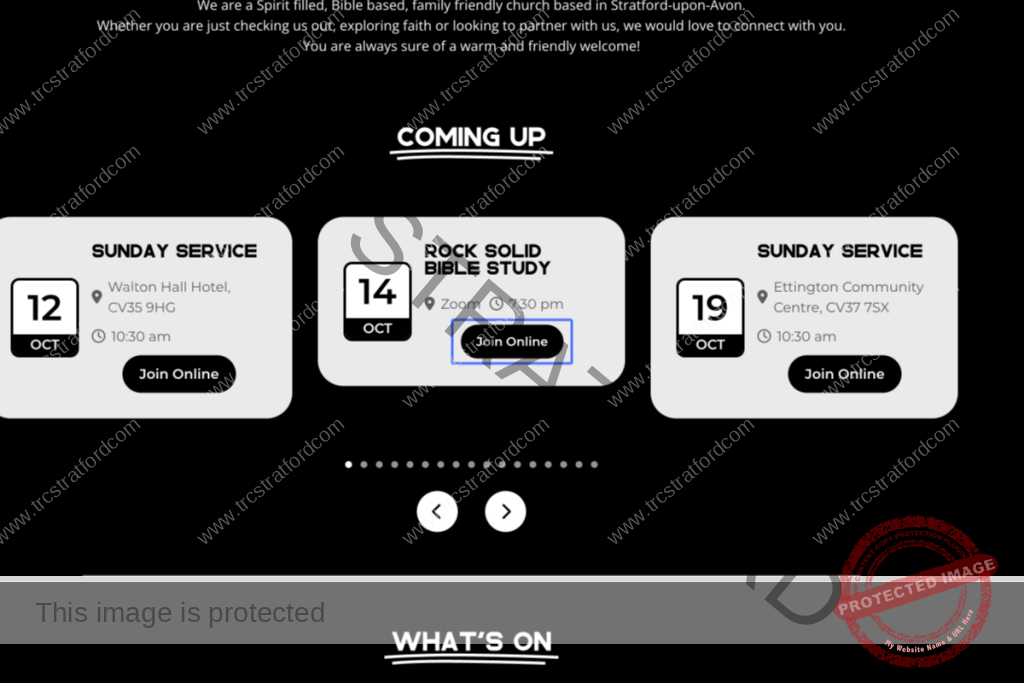
On the homepage go to the ‘Coming Up’ section near the top of the page.
Find the correct meeting tile and click the blue ‘Join Online’ button.
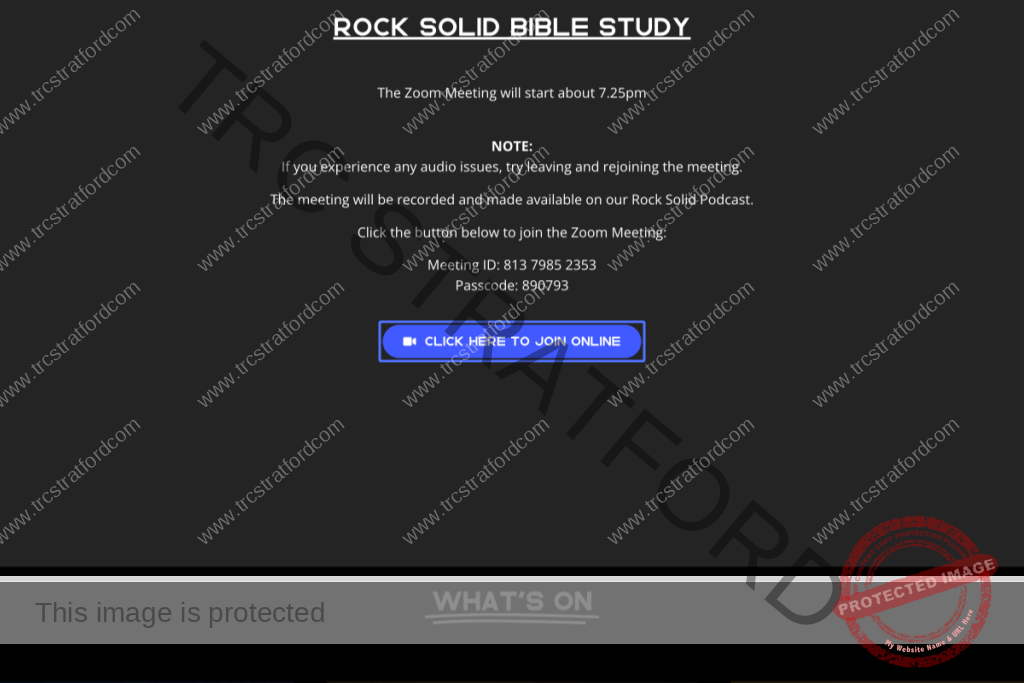
You will see a pop up window with further information about the meeting including the Zoom Meeting ID number and Passcode. Below this will be another blue button. Click the button and it will take you straight to the meeting without needing to enter the Meeting ID or Passcode.
Waiting Room
You may see a screen like this. Don’t worry, this is the waiting room.
This is on by default and does not mean there is a problem, you will see a notice that says the host will let you in shortly.
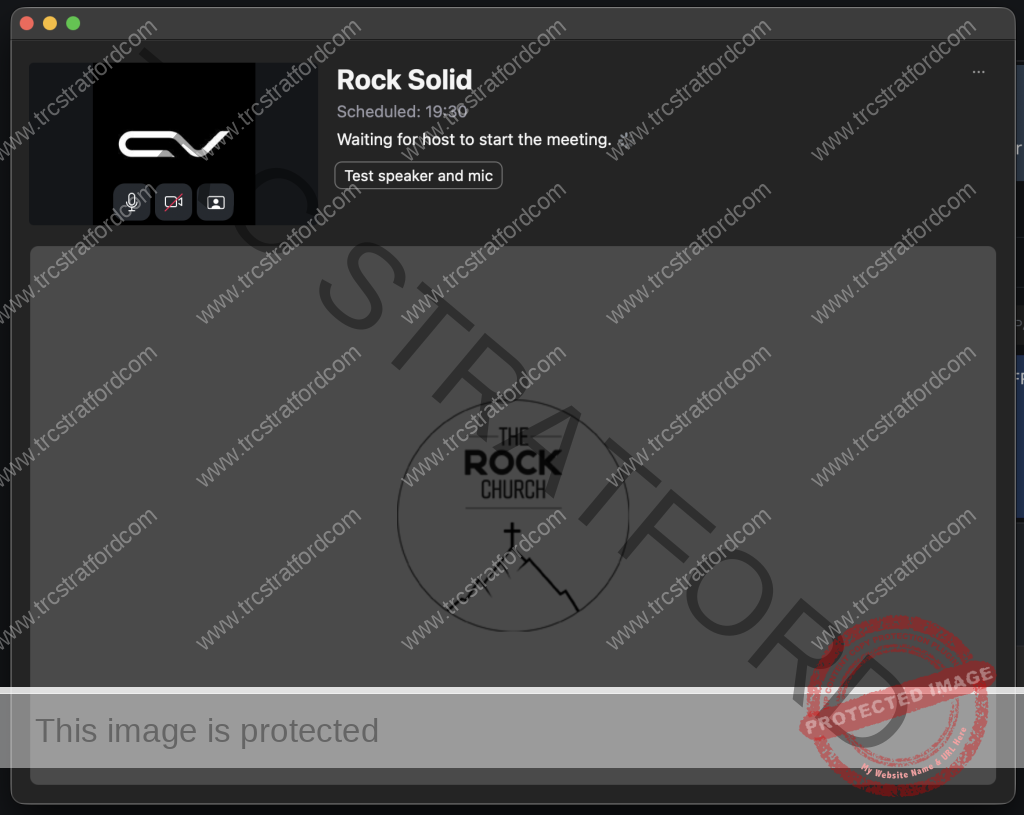
Please wait till we are ready to let you into the meeting, there is no need to drop off and come back.
A delay in letting you in may be the speaker for this session is running late or we are experiencing some other issues we need to sort before we can start.
I Can’t Un-Mute
Don’t worry, we have disabled this option for all attendees joining the meeting. Only the hosts and speakers are able to un-mute. This is to ensure a great experience for everyone joining the meeting making sure you can hear the speaker and not have others making noise in the background disturbing the meeting.
We usually allow everyone to come off mute at the end to say good bye.
I Want To Ask A Question
No problem, please put this in the meeting chat.
If you would prefer to stay anonymous, you can send it in a private chat message to one of the hosts.
Audio Issues
If you are experiencing audio issues like you cannot hear what is being said, please check that your speaker volume is turned up on your device. This is done using your on device volume control not in Zoom itself.
If you still cannot hear, try leaving the meeting and joining again. It may just be your device did not connect to audio properly the first time.
Is your Zoom App and device operating system up to date? Many issues are quickly resolved with an update or even restarting the device. Yes, ‘Have you tried turning it off and on again?’
If you are still having issues, check that you have allowed Zoom permissions to access your speaker and microphone. This will be found in your devices Privacy Settings.
If Zoom is asking for permission to access your speaker and or microphone, please allow this. If you wish to be able to turn on your webcam for others to see you, please also allow access to your camera.
If you are still experiencing issues, do you have another device you can try using?